
| Contents: | Main | Chapter | See Also: | Getting Started Manual | Advanced User Manual | |||
Below is an example of the Form Editor's Main Screen.
The top portion of the Main Screen is the Work Area. Here you see field captions, as well as underscores representing data fields, for fields that are defined on the blocks of the current page. Each of these items is called a screen element. This area of the screen is the one that you control when you display information to the user on a form.
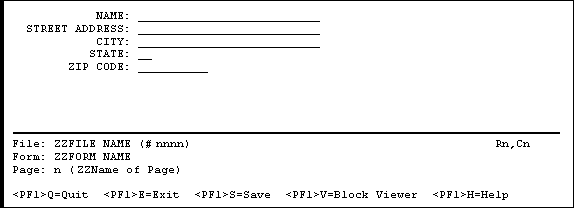
The bottom portion of the screen contains status information, such as:
When a user runs a form, this portion of the screen is occupied by ScreenMan's command area.
You can exit from the Form Editor's Main Screen in one of two ways:
You can also save changes without leaving the Form Editor by pressing <PF1>S.
Pressing <PF1>H accesses the Form Editor's online help screens.
| General Key Sequences | |
| To | Press |
| Exit and save changes | <PF1>E |
| Quit without saving changes | <PF1>Q |
| Save without exiting | <PF1>S |
| Bring up help screens | <PF1>H |
| Move to Block Viewer screen | <PF1>V |
Reviewed/Updated: May 2026